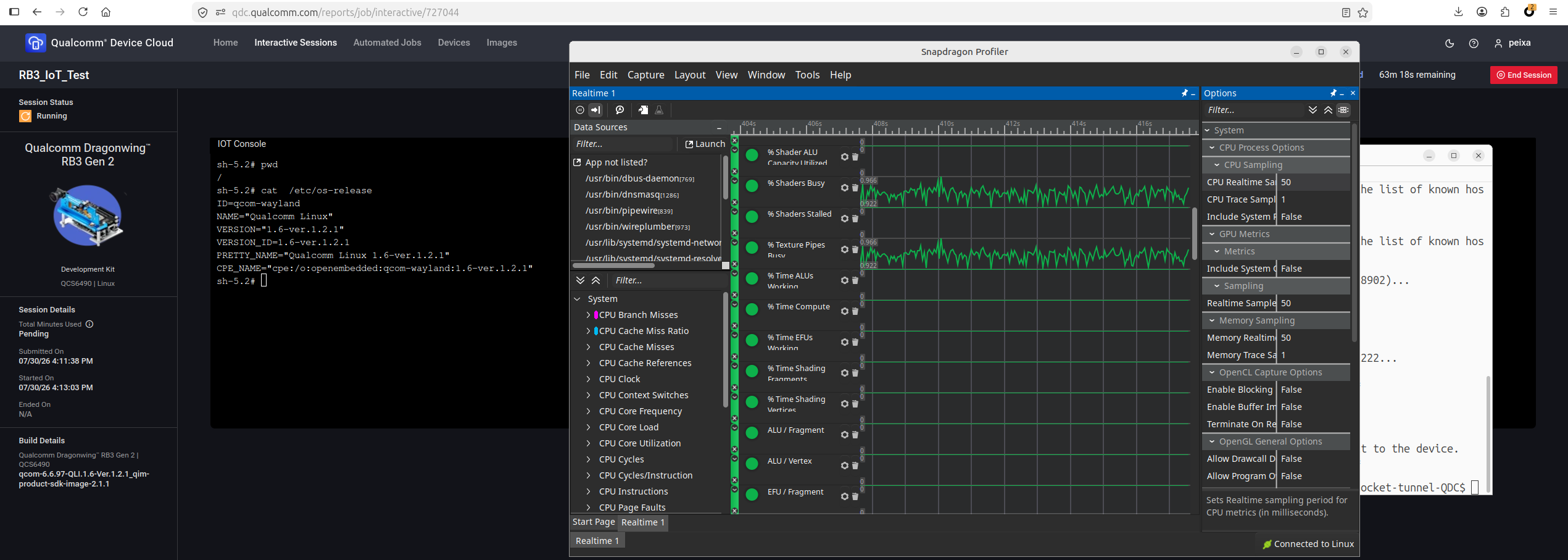
Remote Profiling On Snapdragon Profiler
You can use Snapdragon Profiler (SDP) to profile QDC-hosted remote devices. Follow the steps below to connect.
Supported Devices
- Mobile
- IOT (RB3 Gen2)
- PC (Not Yet)
- AUTO (Not Yet)
Prerequisites
Before you begin, make sure you have:
- Snapdragon Profiler installed on your laptop.
- A running QDC interactive session for your device.
- Your QDC API key. Please get the API key from the QDC UI under Users → Settings → API Keys.
- An SSH key pair for QDC SSH Key. Either upload your existing SSH public key or generate a new key from QDC.
The following command-line tools on your PATH:
sshcurl— requiredadb— required for Mobile/Androidscp/ssh— required for RB3 Gen2
Step 1: Download and extract the package
Download the release package for your host OS and extract it to a folder:
Windows: QDC_SDP_Tunnel_Windows_Latest.zip
Linux / macOS: QDC_SDP_Tunnel_Linux_Latest.tar.gz
Run all of the following steps from the extracted folder.
Step 2: Configure your credentials
Copy the config template and fill in your QDC API key and SSH key path.
Windows:
copy config.local.bat.template config.local.bat
rem  Edit config.local.bat — set QDC_API_KEY and SSH_KEY
Linux / macOS:
cp config.local.sh.template config.local.sh
# Edit config.local.sh — set QDC_API_KEY and SSH_KEY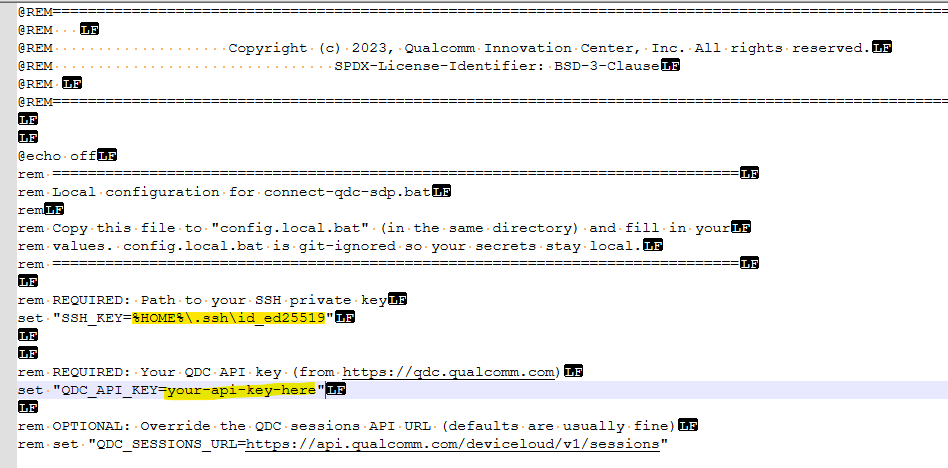
Step 3: Run the launcher
Run the launcher from the extracted folder:
Windows:
connect-qdc-sdp-launcher.bat
Linux / macOS:
chmod +x connect-qdc-sdp-launcher.sh
./connect-qdc-sdp-launcher.sh
The launcher auto-discovers your running QDC session and completes the connection automatically. Keep the tunnel windows it opens running.
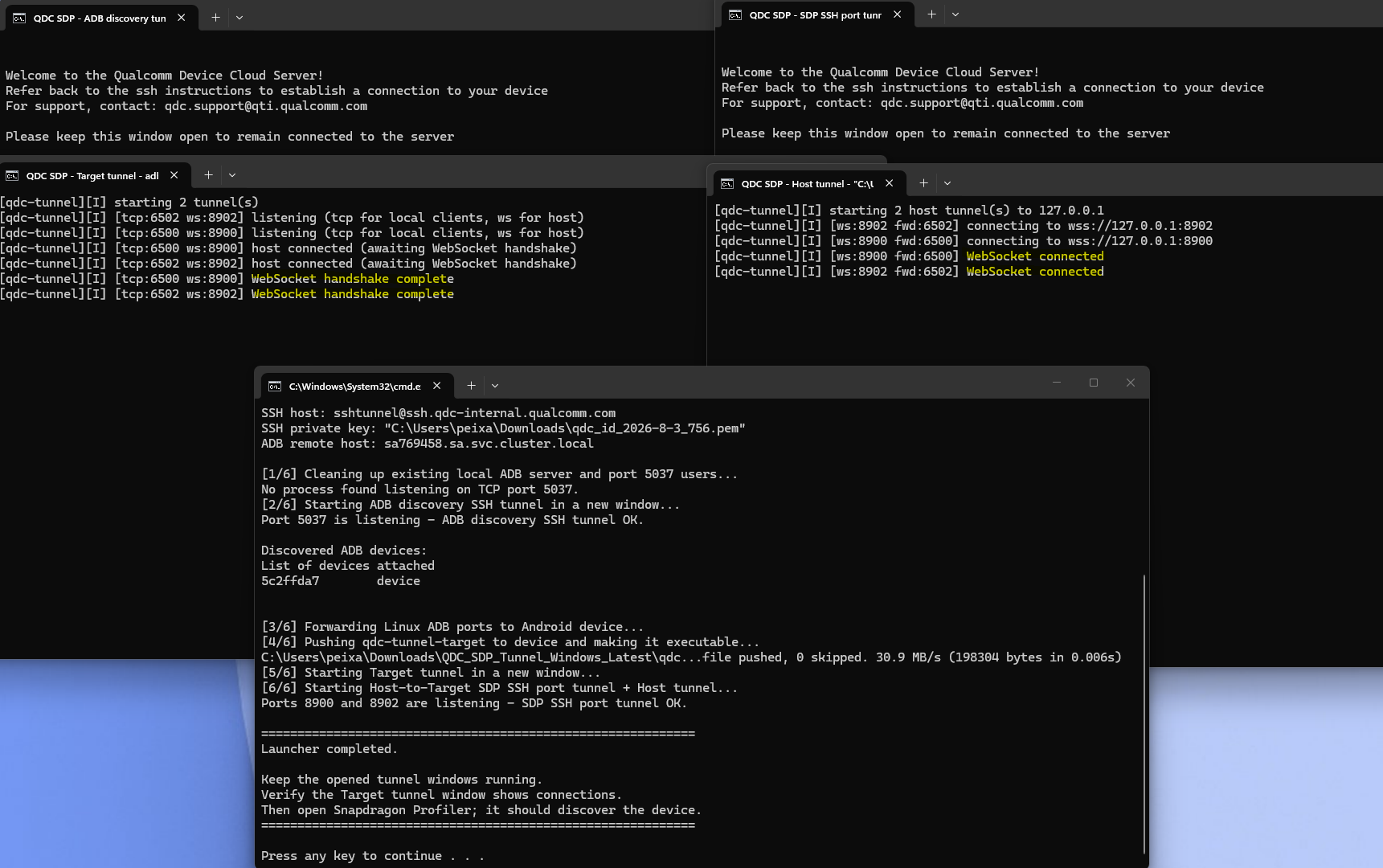
Step 4: Connect Snapdragon Profiler
Open Snapdragon Profiler. The connection steps differ by device type.
Mobile (Android)
The device is detected automatically through ADB.
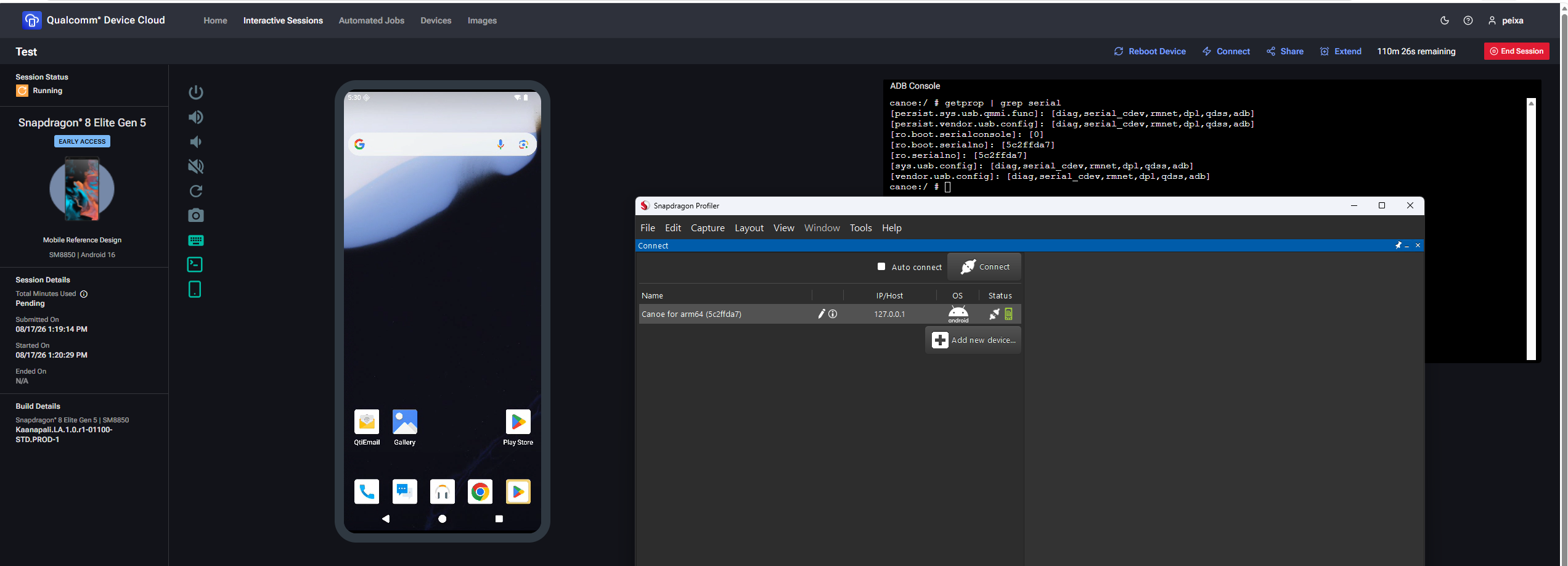
Start profiling (Realtime only for now, more modes will be supported soon).
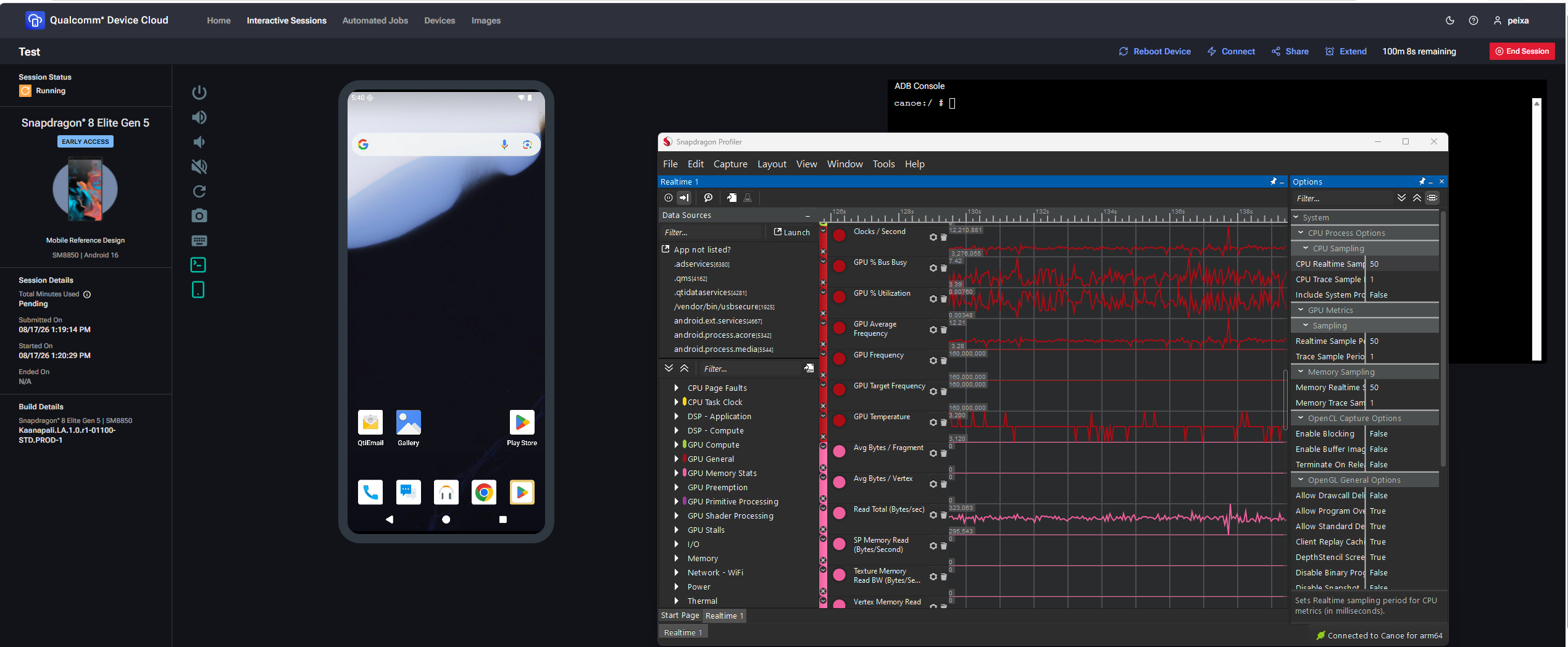
IoT (RB3 Gen2)
The device is connected through a Linux SSH Connection:
- In Snapdragon Profiler, add a new Linux SSH Connection and enter the connection details.
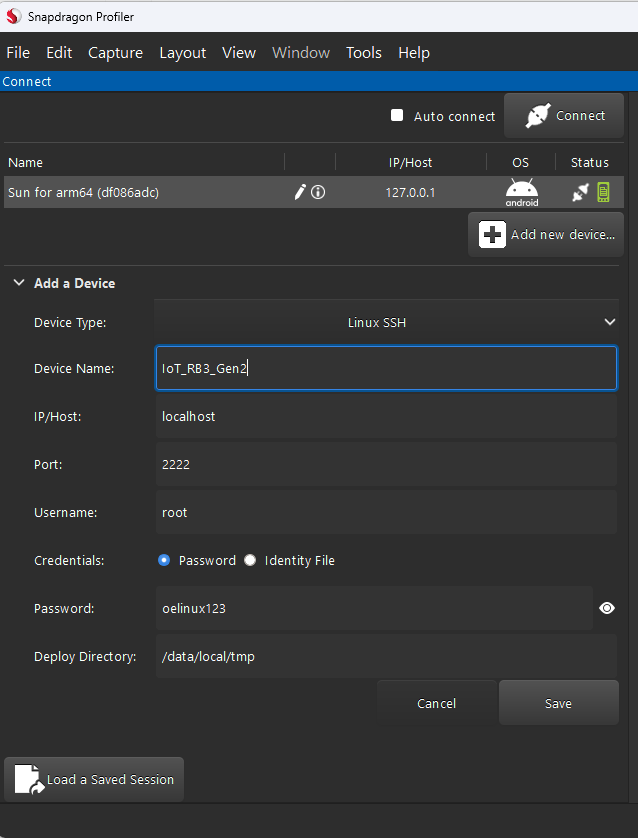
-
After adding the connection details, close Snapdragon Profiler and re-open it.
-
On restart, the IoT device is detected automatically through SSH. Select the device, choose Realtime capture mode, and start profiling.